


Unlock more with the Adobe Firefly Pro plan with access to Adobe Podcast Premium 
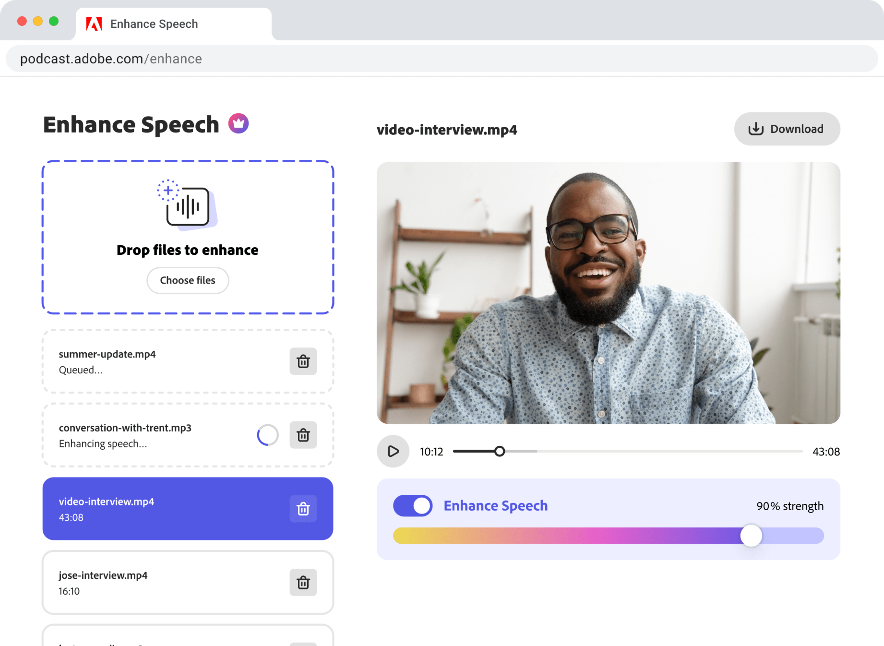
- Enhance Speech fixes audio problems after the fact, no perfect mic needed
- Video support for MP4, MOV, and more
- Bulk upload files for enhancement
- Adjust speech, music, and ambience for a more natural sound
- Enhance up to 4 hours a day, files up to 1 GB
- No download limits on Studio projects
- Download original recordings, speaker-separated
- Customize audiograms and captions with themes
- Upload custom backgrounds for audiograms
- 4,000 generative credits/month and unlimited generation on select image models
Enhance Speech


Studio


Create with Firefly Pro

 Start free trial
Edit videos in Adobe Podcast Studio
Edit video by editing text—no timeline needed.
Last updated: June 6, 2025
Author: Harmony Jiroudek, Product education & community manager
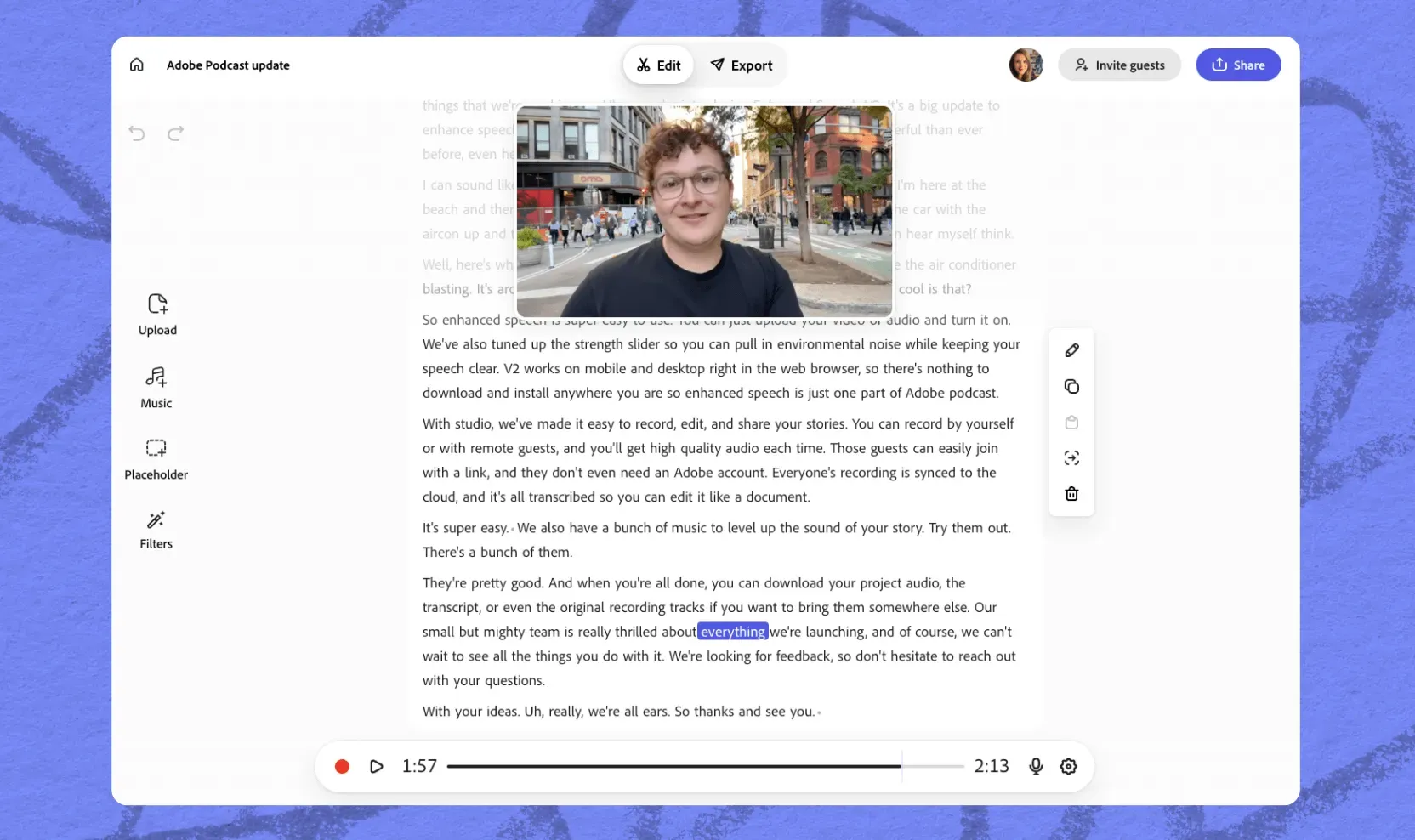
Video editing just got easier. Now you can upload and edit video directly in Adobe Podcast Studio. Whether you're working on a podcast, interview, or social clip, you can transcribe your video, edit the transcripts to edit the audio and video, and export the final result—all in one place. Here's how it works:
1. Upload your video
Go to Studio and create a new project. Drag and drop your video file into the project, or click the Add icon to upload from your device.
- Video files must be 5 GB or smaller and no longer than 2 hours.
- Accepted file types: mp4, mov, m4v, 3gpp, and webm.
2. Transcribe the video
Once your upload is complete, click the slider icon (top-right of the video clip menu), then select Transcribe to convert your audio to text.
🌍 Transcription is available in English, French, German, Italian, Portuguese, and Spanish.
3. Edit video by editing the transcript
- To remove a word or phrase, simply delete it from the transcript—your audio and video will update automatically. You can also rearrange or trim sections—just cut, copy, and paste (just like editing a text document).
- Correct transcription typos—to fix transcription errors, capitalization issues, and names click on the word you want to edit and use the Pencil icon in toolbar for polishing.
- Enhance your audio with Enhance Speech (available to Premium users).
4. Add music
Bring your video to life with music:
- Use the built-in royalty-free music library
- Upload your own custom music, intros, or outros
- Create or repurpose a custom intro
5. Export your finished video
When you're ready, click Export at the top of the page to export your video. You have several options depending on how you plan to use your content:
- Download your full project: Get a polished video file with all edits, music, and enhancements applied—perfect for uploading to YouTube, sharing with clients, or publishing on your website.
- Download just the audio: Need an audio-only version? Export your project as an MP3 or WAV file—great for podcast platforms or voice-over needs.
- Download the transcript: Export your transcript (as a TXT, PDF, or DOCX). Use it for captions, accessibility, blog posts, or SEO-optimized show notes.
- Create audiograms: Turn clips into shareable audiograms—visual soundbites ideal for social media promotion.
- Export clips: Select and export short sections of your video for social media, teasers, or highlights—without having to duplicate or re-edit your full project.
Each export option is designed to help you repurpose your content quickly and effectively across different platforms. Now head over to Studio and start editing your masterpiece.
About the author: Harmony leads product education and community for Adobe Podcast. As a musician and educator, she brings a human-centered approach to helping creators learn, connect, and grow with powerful audio tools. Her passion lies in making creative technology feel accessible, empowering, and inspiring.